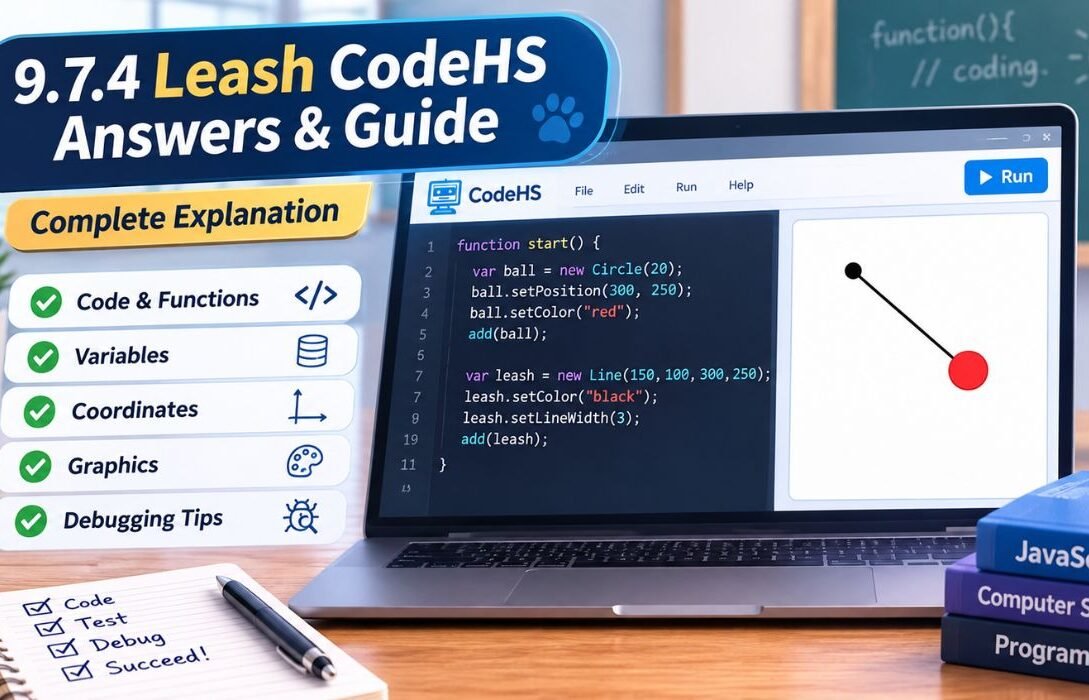
If you are working on the CodeHS 9.7.4 Leash exercise, you may need a clear explanation of how the program works. The exercise combines variables, functions, graphics, movement and user interaction, which can be confusing at first. This guide explains the main logic, key variables and how the ball and leash work together, helping you understand the solution and solve similar CodeHS exercises more confidently.
Whether you are stuck on the setup, movement, drawing or debugging, this guide will help you understand the programming concepts involved in the 9.7.4 leash codehs answers topic.
What Is the CodeHS 9.7.4 Leash Exercise?
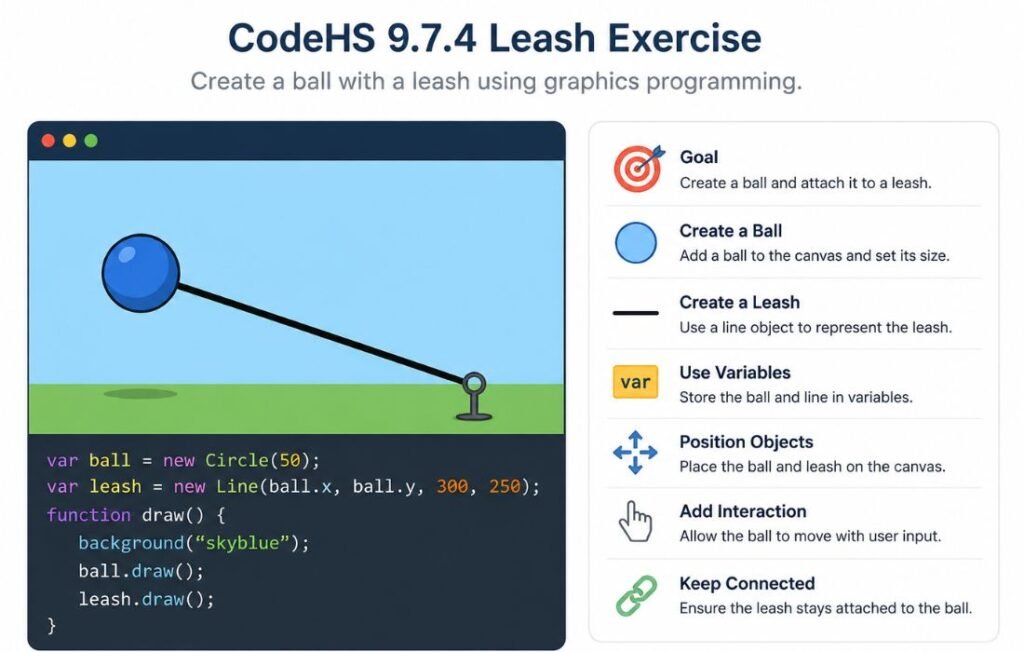
The Leash exercise is a programming task associated with CodeHS graphics based lessons. It typically involves creating a visual scene containing a ball and a line that acts like a leash. The goal is to use JavaScript style programming concepts to create and control graphical objects. Rather than treating the exercise as a collection of random commands, think of it as a small interactive animation. The program generally needs to handle several basic tasks:
Create a ball. Give the ball an appropriate size. Create a line representing the leash. Store important objects in variables. Position the objects on the canvas. Respond to movement or interaction. Keep the graphical elements connected logically.
Understanding the exercise first can make it much easier to follow 9.7.4 leash codehs answers and apply the same concepts in your own program.
Understanding the Main Variables
One of the most important parts of understanding 9.7.4 leash codehs answers is learning how the variables used by the program work. A typical starting section may contain variables similar to:
var BALL_RADIUS = 30;
var line;
var ball;
var x;
var y;
Each variable has a different purpose.
BALL_RADIUS
BALL_RADIUS represents the radius of the ball. Using a named constant instead of repeatedly writing a number makes the program easier to understand. If the size needs to change later, you can modify the value in one place. For example, if the radius is 30, the ball’s diameter would be twice that value.
The Ball Variable
The ball variable stores the graphical ball object. Once the object is created, the program can use this variable to change its position or interact with it. This is an important programming idea: instead of recreating the object every time you want to use it, you save it in a variable and work with that variable.
The Line Variable
The line variable stores the leash. The line connects two points on the canvas. Depending on how the exercise is designed, one end may be connected to the ball while the other represents the person or another fixed point.
The X and Y Variables
Understanding coordinates is essential when working with 9.7.4 leash codehs answers, because the ball and leash depend on accurate positioning. The x and y variables represent coordinates. On a typical graphics canvas:
- x controls horizontal position.
- y controls vertical position.
Increasing x generally moves an object toward the right while increasing y generally moves it downward. This coordinate system is essential for understanding how the ball and leash should move.
How the Leash Program Works
The following breakdown makes the logic behind 9.7.4 leash codehs answers easier to understand step by step.
Create the Objects
The program first needs to create the graphical objects. The ball must be created using the appropriate graphics object while the leash needs to be represented by a line. At this stage, the objects exist in the program but they may not yet appear where you want them. This is one of the first steps you will see when working through 9.7.4 leash codehs answers.
Set Their Properties
When following 9.7.4 leash codehs answers, it is important to understand why each graphical object’s properties are configured. After creating an object, you normally need to give it properties. Understanding these properties is another important part of following 9.7.4 leash codehs answers correctly. For the ball, this may include:
- Radius
- Position
- Color
For the line, this may include:
- Starting point
- Ending point
- Position
- Color or appearance
Separating object creation from object positioning makes the code easier to read and debug.
Add Objects to the Canvas
Creating an object does not always mean it will automatically appear on the screen. The program needs to add the graphical elements to the canvas. A useful way to think about this is:
Create → Configure → Add → Update
This pattern appears frequently in graphics programming.
Connect the Ball and Leash
The central idea of the exercise is the relationship between the ball and the leash. If the ball moves, the leash should behave appropriately. That means the program needs to track the ball’s position and use coordinates to update the line.
For example, imagine a dog walking across a yard while holding a ball attached to a leash. The leash should not remain floating in its original position while the ball moves somewhere else. The same principle applies to the graphics program.
This connection is one of the key ideas behind 9.7.4 leash codehs answers.
Why Coordinates Matter
Coordinates are one of the most important concepts to understand when working with 9.7.4 leash codehs answers. Imagine a canvas that is 500 pixels wide and 400 pixels tall. A point at:
x = 100
y = 150
would be located 100 pixels from the left side and 150 pixels from the top. If the ball moves to:
x = 200
y = 150
it has moved horizontally while remaining at the same vertical position. This simple idea becomes important when the program needs to keep the leash connected to the ball.
A Real World Example
Think about a person holding a balloon. If the balloon moves to the right, the string’s endpoint must also move to the right. Otherwise, the string would no longer appear attached to the balloon. The Leash exercise uses a similar concept. This example makes the relationship between movement and coordinates easier to understand when following 9.7.4 leash codehs answers.
Understanding the start() Function
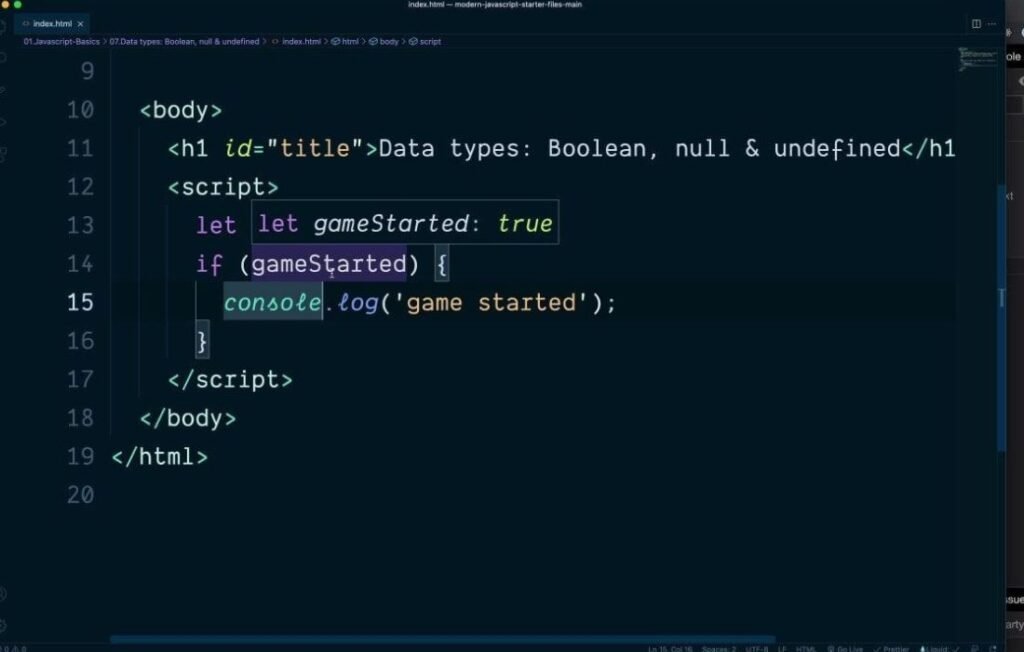
Many CodeHS JavaScript programs use a start() function as the main entry point, which is also important when understanding 9.7.4 leash codehs answers.
For example:
function start() {
// program instructions
}
The commands inside this function are executed when the program starts. This makes start() an important place to look when you are trying to understand why your program is not working. When reviewing your code, ask:
- Are the variables declared correctly?
- Are the graphical objects created?
- Are their properties set?
- Are the objects added to the canvas?
- Are the correct coordinates being used?
- Is the movement or interaction code inside the appropriate function?
Checking these items in order can help you locate mistakes quickly.
A Step by Step Approach to Solving the Exercise
This step by step method can make 9.7.4 leash codehs answers easier to understand instead of simply copying a solution. Use this approach instead.
Step 1: Read the Instructions Carefully
Start by identifying exactly what the exercise asks you to create. Look for requirements involving:
- Objects
- Sizes
- Positions
- Movement
- Mouse interaction
- Keyboard interaction
- Functions
Do not begin coding until you understand what the final scene should look like.
Step 2: List the Required Objects
Write down every object you need. For this exercise, the important objects may include the ball and the leash line. Giving each object a clear variable name makes the rest of the program easier to follow.
Step 3: Establish the Starting Position
Decide where the ball should initially appear. Remember that graphics coordinates usually begin near the upper left corner of the canvas. You should also determine where the other end of the leash should begin.
Step 4: Create the Ball
Use the appropriate CodeHS graphics object for the ball. Apply the required radius and place it at the correct coordinates. This basic setup is an important part of understanding 9.7.4 leash codehs answers.
Step 5: Create the Line
Create the leash as a line between the appropriate coordinates. Make sure you understand which coordinates represent the starting point and which represent the ending point.
Step 6: Add Everything to the Canvas
Add the required objects so they become visible. If an object was created but does not appear, check whether it was actually added to the canvas.
Step 7: Add Interaction
If the exercise requires movement, determine what should happen when the user interacts with the program. For example, if the ball follows the mouse, the program needs to obtain the mouse position and update the ball and leash accordingly. Understanding this interaction is especially useful when studying 9.7.4 leash codehs answers involving mouse movement.
Step 8: Test Small Changes
Do not write the entire program and wait until the end to test it. Instead:
Create the ball and test it. Add the line and test it. Add movement and test it. Connect the objects and test again. Testing in small stages makes debugging much easier.
Common Problems Students Face
Even when the basic idea is simple, several mistakes can cause problems. Knowing these common errors can help you troubleshoot 9.7.4 leash codehs answers more effectively.
The Ball Appears in the Wrong Place
This usually means the coordinates are incorrect. Check the values assigned to x and y. Remember that the canvas coordinate system is different from a traditional mathematical graph.
The Ball Is Not Visible
If you are reviewing 9.7.4 leash codehs answers and the ball does not appear, check the following points:
It was created correctly. Its position is inside the canvas. Its radius is valid. It was added to the canvas. A missing canvas-add command is a common cause of invisible graphics.
The Leash Does Not Follow the Ball
If the ball moves but the leash remains stationary, the lines coordinates are probably not being updated. The program needs to know the balls current position and use that information when updating the leash. This is a common issue to check when troubleshooting 9.7.4 leash codehs answers. Understanding this relationship is an important part of finding the correct 9.7.4 leash codehs answers.
The Objects Move in Unexpected Directions
Review the coordinate values. Remember:
- Increasing x moves right.
- Decreasing x moves left.
- Increasing y moves down.
- Decreasing y moves up.
Confusing these directions can create unexpected movement.
How to Debug Your Leash Code

Debugging is a major programming skill, and it is especially useful when working through 9.7.4 leash codehs answers. Instead of changing several lines at once, make one change and test the program.
Check Syntax
Look for:
- Missing brackets
- Missing parentheses
- Incorrect quotation marks
- Misspelled variable names
- Missing semicolons where required
Check Variable Names
If you create a variable called ball, do not accidentally refer to it later using another name such as Ball. JavaScript can treat differently capitalized names as different identifiers.
Check Coordinates
Print or inspect the values of your coordinates when possible.Ask yourself:
Where should the object be, and where is the program actually placing it?
This simple question can help identify many graphics problems.
Why Understanding the Code Is Better Than Copying an Answer
Searching for 9.7.4 leash codehs answers can help when you are stuck but copying a solution without understanding it can cause problems later. CodeHS exercises are designed to build programming skills that you will use in future lessons. If you understand how this exercise works, you will be better prepared for tasks involving:
- Variables
- Functions
- Graphics
- Coordinates
- Events
- Object properties
- Animation
- Debugging
The goal is not simply to make one exercise pass. The bigger goal is to understand the programming concepts behind it.
Tips for Getting the Exercise Right
When working with 9.7.4 leash codehs answers, following a careful testing process can help you avoid common mistakes. To get the exercise right, start by reading the complete instructions carefully before writing any code. Use meaningful variable names so your program remains easy to understand and keep constants such as the ball radius clearly defined. Test the program after each major change instead of waiting until the entire code is finished.
Pay close attention to the coordinates and make sure all graphical objects are properly added to the canvas. It is also helpful to keep related instructions organized inside functions and use error messages to identify possible syntax problems. Avoid changing code that is already working and most importantly, make sure you understand what each line does before using it.
Final Thoughts
The CodeHS 9.7.4 Leash exercise is a useful introduction to graphics programming because it brings several basic concepts together in one project. You work with variables, coordinates, graphical objects, functions and interaction while creating a simple visual scene.
When looking for 9.7.4 leash codehs answers, remember that the most useful solution is one that explains why the code works. Start by understanding the required objects, establish their positions, connect the leash to the ball and then add any required interaction or movement.
If something does not work, debug the program one part at a time instead of rewriting everything. Once you understand how the ball, line and coordinates relate to each other, the exercise becomes much easier to manage. These debugging and programming techniques can also help you understand future 9.7.4 leash codehs answers more confidently.
FAQs
What is CodeHS 9.7.4 Leash?
CodeHS 9.7.4 Leash is a programming exercise involving graphics and a leash like line connected to a ball. It helps students practice variables, coordinates, graphical objects and program logic.
What programming language is used in the Leash exercise?
The exact language can depend on the CodeHS course and lesson configuration. Many CodeHS graphics exercises use JavaScript based syntax and graphics libraries.
What does BALL_RADIUS do?
BALL_RADIUS stores the radius of the ball. Using a named constant makes the program easier to read and allows you to change the ball’s size without searching through the entire program.
Why are x and y important?
The x and y values determine where an object is located on the graphics canvas. The x coordinate controls horizontal placement while y controls vertical placement.
Why is my ball not appearing?
Check that the ball is created correctly, its coordinates are inside the visible canvas, its radius is valid and the object has been added to the canvas.
Why does the leash stay in one place?
The leash may not be receiving updated coordinates when the ball moves. Check the part of the program responsible for updating the line’s endpoint or position.
How can I debug my CodeHS Leash program?
Start by checking syntax errors, variable names, object creation, coordinates and canvas commands. Test one section at a time rather than changing the entire program at once. These steps are useful when working through 9.7.4 leash codehs answers and similar CodeHS graphics exercises.
Should I copy a complete CodeHS answer?
A complete solution may help you identify where you are stuck but understanding the logic is more valuable. Use examples to learn how the program works and then apply those concepts to your own code. The same approach applies when searching for 9.7.4 leash codehs answers online.
What concepts can I learn from this exercise?
The exercise can help you practice variables, functions, coordinates, graphics objects, object properties, movement, interaction and debugging. These concepts are useful in many later programming projects.